HealthExport exports data stored in the iPhone Health app (HealthKit) to a CSV / XML file for the period and data types you choose. You can share the exported file any way you like: AirDrop, email, cloud storage, and more.
Basic Usage
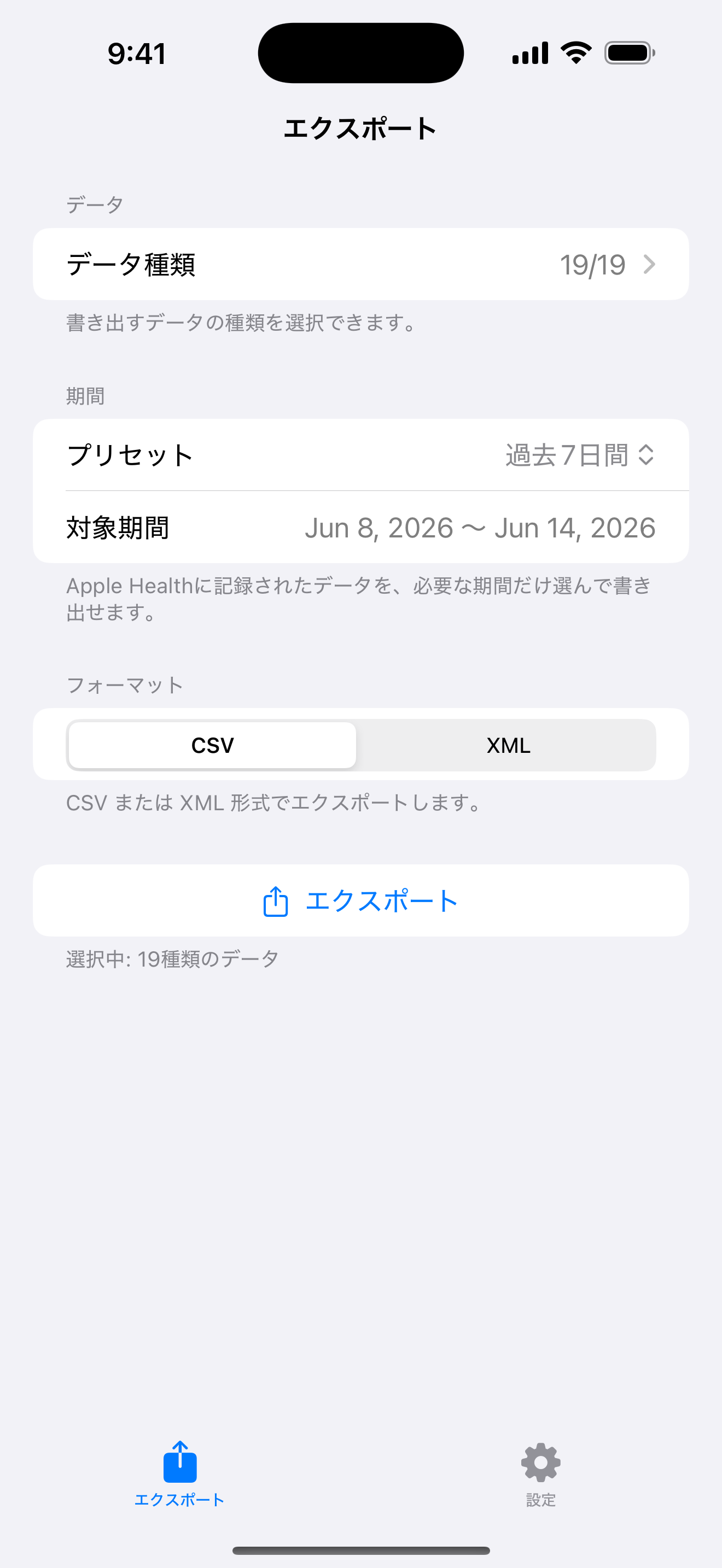
- The first time you open the app, it asks for permission to access your Health data. Allow the data you want to export.
- On the home screen, choose a Period (e.g. Today / Last 7 Days / Custom).
- Choose the output format (CSV / XML) under Format.
- Tap Data Types and turn on the data you want to export (steps, heart rate, and so on).
- Tap Export. The file is created and the share sheet opens. Choose where to save or send it, and you’re done.
Settings
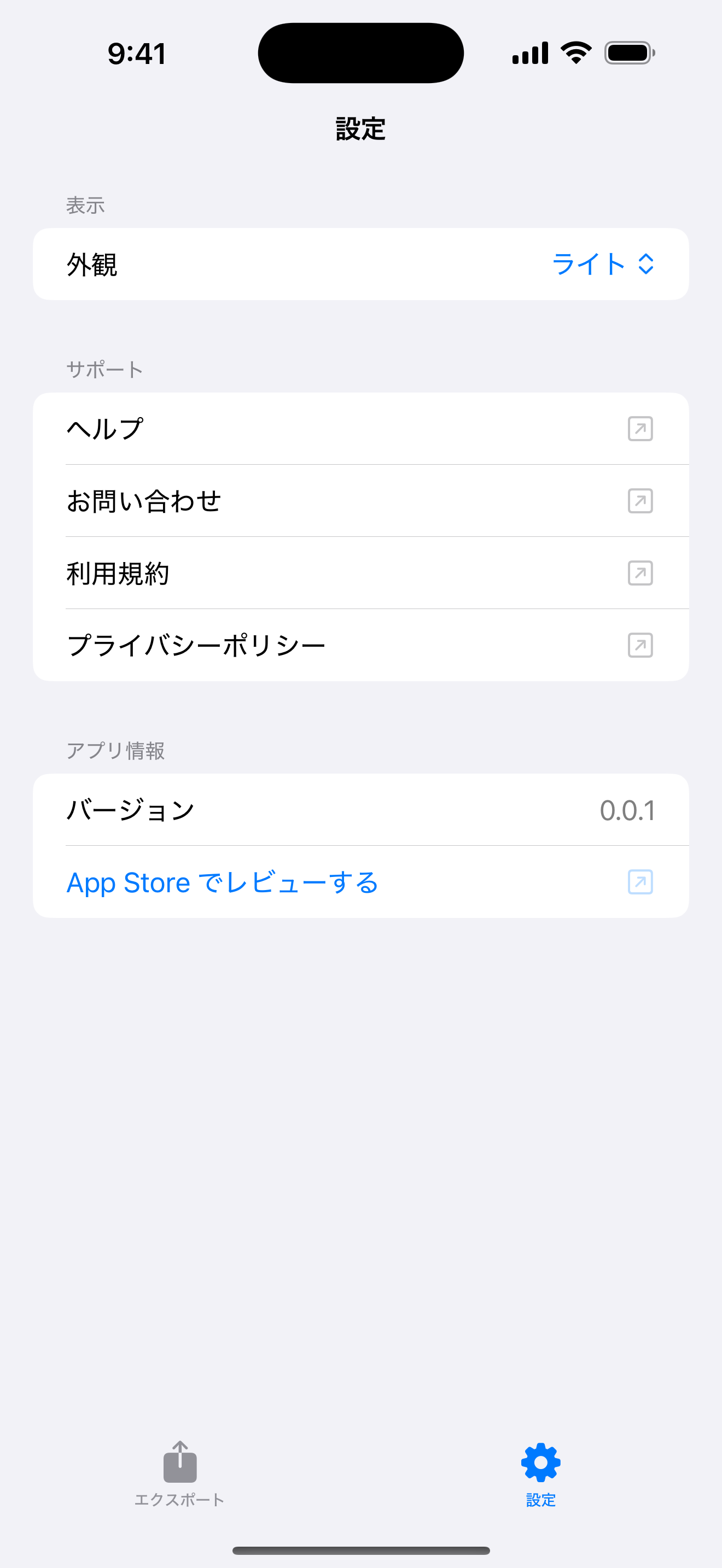
From the Settings tab at the bottom of the screen, you can switch the appearance (System / Light / Dark), contact us, and read the Terms of Use and Privacy Policy.
Permissions
The app treats Health data as read-only. Only the data types you have allowed can be exported. You can change permissions at any time from iPhone Settings > Privacy & Security > Health > HealthExport.
Available Periods
| Preset | Range |
|---|---|
| Today | 0:00 today to now |
| Yesterday | The whole of yesterday |
| Last 7 Days | 6 days ago through today (7 days) |
| Last 28 Days | 28 days ago through today |
| Last 90 Days | 90 days ago through today |
| Last 12 Months | 12 months ago through today |
| Year to Date | January 1 through today |
| Custom | Any start and end date |
Supported Data Types
The following Health data types are supported. Each can be turned on or off.
Activity
- Steps
- Walking + Running Distance
- Active Energy
- Exercise Minutes
- Flights Climbed
- Stand Minutes
Vitals
- Heart Rate / Resting Heart Rate
- Blood Pressure (Systolic / Diastolic)
- Blood Oxygen
- Body Temperature
- Respiratory Rate
Sleep & Workouts
- Sleep Analysis
- Workouts (type, duration, calories, distance)
Body Measurements
- Weight / Height / BMI / Body Fat Percentage
Output Formats (CSV / XML)
CSV opens in spreadsheet apps (Excel, Numbers, Google Sheets). It has the columns date, type, value, unit, source, with one record per row.
XML is a structured format suited to importing into or converting with programs.
The file name is generated automatically in the form HealthExport_<date-time>.csv (or .xml).
The output is raw source data, Apple style. It writes out the format HealthKit uses internally, unchanged. Note that Blood Oxygen and Body Fat Percentage are stored by HealthKit as decimals between 0 and 1, so the exported values are decimals such as 0.95 (equivalent to 95%). Multiply by 100 to convert to a percentage.
When “No Data” Is Shown
If some items on the Data Types screen show “No Data”, one of the following is the cause.
- Access to that data type has not been allowed (check in the Health settings).
- You do not own, or have not paired, a supporting device (see the table below).
- That data has never been recorded.
Note: due to iOS restrictions, the app cannot tell “not allowed” apart from “no data”. You do not need to turn these off; types with no data simply produce no rows in the exported file.
| Data type | Required device |
|---|---|
| Resting Heart Rate, Exercise Minutes, Stand Minutes | Apple Watch |
| Blood Pressure (Systolic / Diastolic) | A supported blood pressure monitor (e.g. Withings) |
| Body Temperature, Respiratory Rate | A supported device or manual entry |
FAQ
Q. Is my data sent anywhere?
A. No. Health data is processed only on your device and is never sent to our servers or any third party. You choose where the exported file goes. See the Privacy Policy for details.
Q. It says the data was empty.
A. There may be no data in HealthKit for the selected period. Try widening the period, and check that the data types you want are turned on and that the Health app actually has that data recorded.
Q. Some of the data failed to export.
A. If permission has not been granted for a data type, only that type may fail. From the alert you can choose "Retry" or "Export Without Failed Data". You can review permissions under Settings > Health.
Contact
If your problem is not resolved, please contact us via the Contact page.