How to use LUX - Illuminance Meter.
Basic Usage
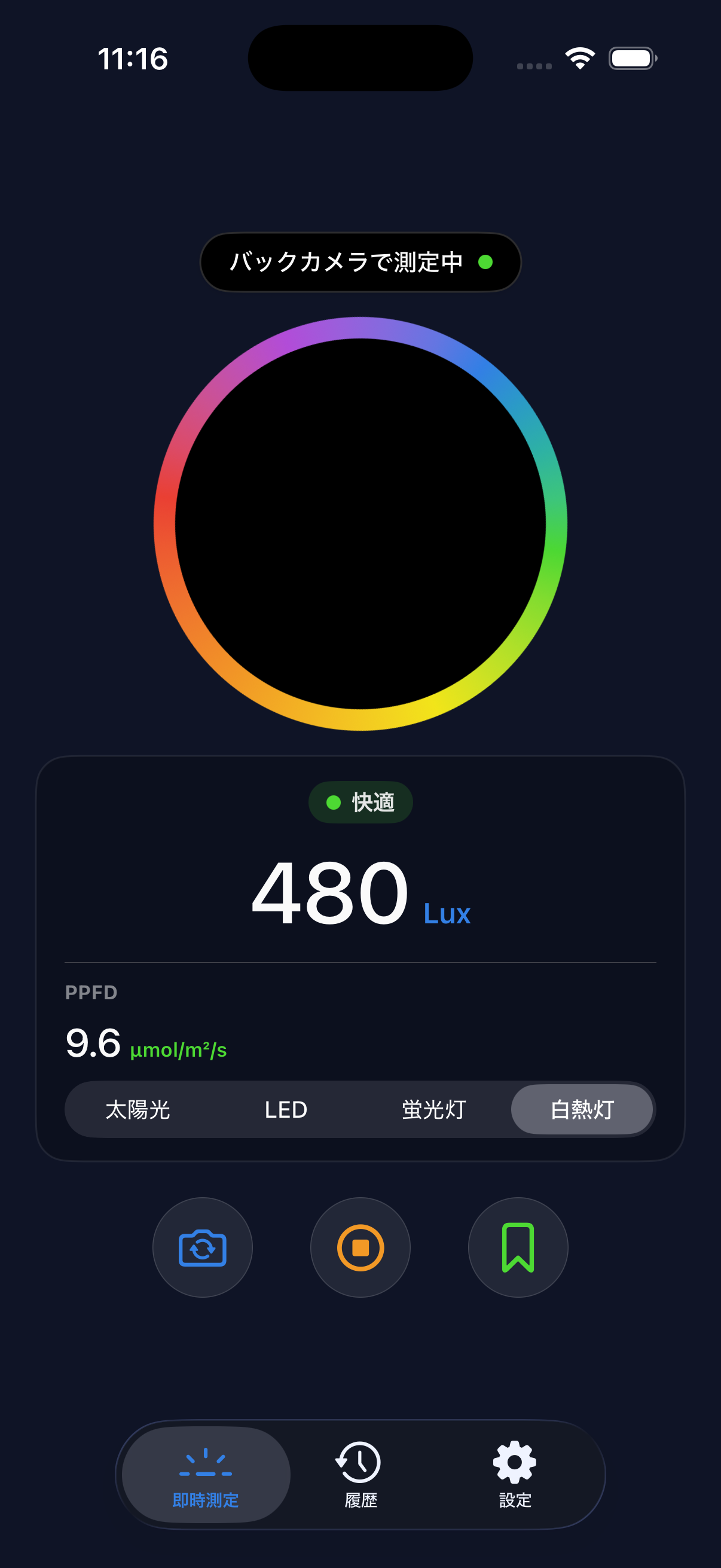
- Launch the app to automatically start measuring illuminance.
- The current illuminance is displayed in lux on screen.
- Point the camera towards the area you want to measure.
- Long press the screen to freeze (lock) the value.
Measurement Tips
- Keep the camera steady — Shaking causes the readings to fluctuate. Place the device on a stable surface for more accurate results.
- Avoid pointing directly at light sources — Extremely bright light sources may exceed the camera sensor’s limits, resulting in inaccurate readings.
- Low light conditions — In very dark environments, accuracy may decrease due to the camera sensor’s sensitivity limits.
For higher precision, we recommend using a professional illuminance meter. This app displays approximate values calculated from the smartphone camera.
Lux Value Reference
| Environment | Lux Value |
|---|---|
| Moonlight | ~1 lux |
| Dim room | ~50 lux |
| Typical office | 300–500 lux |
| Bright indoor | 500–1,000 lux |
| Overcast outdoor | ~10,000 lux |
| Direct sunlight | ~100,000 lux |
Glare Level
Based on the measured lux, the current environment is shown in 5 levels: Dark, Dim, Comfortable, Bright, and Glaring. The thresholds reference JIS Z 9110.
Color Temperature (CCT / Kelvin)
Below the Lux value on the measurement screen, the current light source’s color temperature is shown in Kelvin (K). Use it as a reference for the warmth or coolness of light — roughly 3000K for warm bulbs and around 6500K for daylight.
Color temperature display is available free for all users. Saving to history and CSV export are LUX Pro features.
Min / Avg / Max Automatic Recording
While measuring, the minimum, average, and maximum lux values are tracked and shown on screen. When you tap the stop button, the values at that point become eligible for saving. LUX Pro lets you keep them in history and export them in CSV.
Min / Avg / Max display is available free for all users.
Reference Lux by Scene
Pick a place from Scene on the measurement screen. The bottom of the measurement panel then shows how much brighter or dimmer the current reading is than the reference level. Tap that row to choose another scene.
Reference levels are based on JIS Z 9110 and do not indicate compliance with it. The right brightness depends on how the space is used and on personal preference. For precise measurements, use a dedicated light meter.
Custom Scenes
Use Add Custom Scene at the bottom of the scene list to register your own scene with a name and reference level.
Custom scenes and scenes marked with a lock are LUX Pro features.
Unit Toggle (lux / fc)
From the “Illuminance Unit” setting, switch the display between lux and fc (foot-candles). Conversion uses the industry standard 1 fc = 10.764 lux. fc is common in North America.
The switch applies immediately to the measurement screen and the history list. PDF and CSV exports are always in lux, to avoid unit confusion when sharing data.
PPFD and DLI
What is PPFD?
PPFD is the intensity of light that plants can use for photosynthesis (µmol/m²/s). The app shows an estimate converted from the measured lux and the light source type you select (sunlight / LED / fluorescent / incandescent). Switching the light source type changes the conversion coefficient.
What is DLI?
DLI is the total amount of light a plant receives in a day (mol/m²/day). It is calculated from PPFD and the hours of light per day.
How to Use
Tap Calculate DLI under PPFD on the measurement screen, then set the light duration and plant category. The app shows whether the result is insufficient, adequate or excessive for that plant’s target range.
Notes
PPFD and DLI are simplified estimates based on a lux conversion and a single reading. For accurate values, measure continuously throughout the day or use a dedicated meter.
PPFD and DLI are LUX Pro features.
Continuous Logging
How to Use
Choose an interval (5s, 10s, 30s or 1min) and tap Start Logging. The app records lux at that interval and plots it on a chart. Logging is available while the measurement screen is measuring.
Saving
After you tap Stop Logging, tap Save This Session to add the session’s minimum, average and maximum to your history as one record.
When Logging Stops
Logging stops when you close the app, lock the screen or switch to another app. The screen does not auto-lock while logging.
Before Closing
If logging is in progress or there is an unsaved session, you will be asked before the screen closes.
Continuous logging is a LUX Pro feature.
Measurement History & Exporting PDF and CSV
Save measurements with notes and review them later in a list.
On the history screen, tap Export PDF to create a report listing the date, lux and memo of each record. Use the share menu to save it to Files or send it by mail or message.
CSV
To work with the data in a spreadsheet, tap Export CSV. The file also includes min, avg, max, PPFD and color temperature.
Units
Lux values in PDF and CSV are always exported in lux, regardless of the display unit setting (lux / fc).
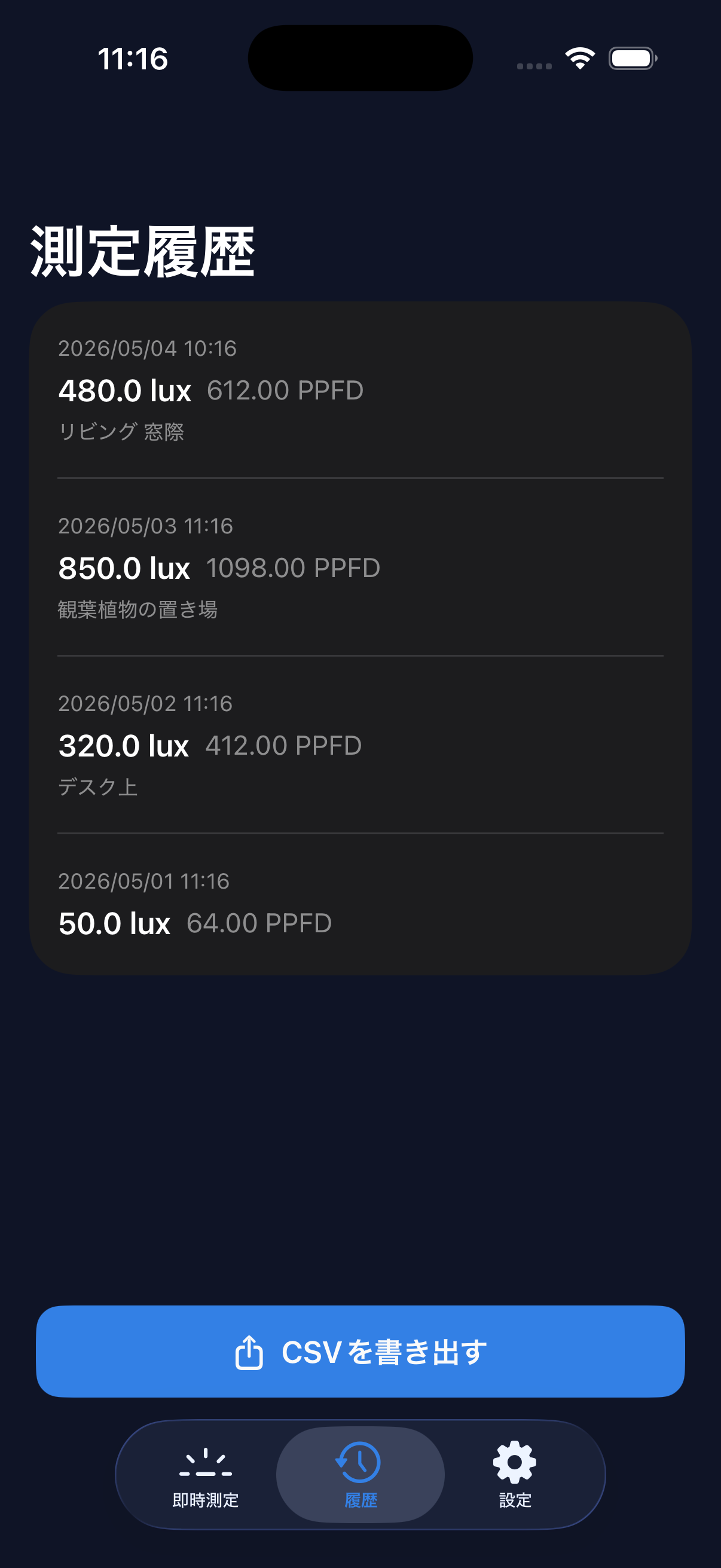
Saving and viewing history, and exporting PDF and CSV, are LUX Pro features.
About LUX Pro
LUX Pro is a paid plan available as a monthly or annual subscription, or a lifetime purchase. All plans include the following features:
- No ads (banner / interstitial)
- PPFD and DLI
- Custom scenes and scenes marked with a lock
- Continuous logging
- Save and view measurement history
- PDF and CSV export
See the LUX Pro page for pricing and auto-renewal details.
How to Purchase
Access the LUX Pro purchase screen from the Settings tab in the app.
Restore Purchase
After changing devices or reinstalling the app, use the “Restore Purchase” button in Settings. You must be signed in with the same Apple ID.
FAQ
Q. Are the measurements accurate?
A. The readings are approximate values calculated from the iPhone's camera sensor. Accuracy depends on the device's camera capabilities and may not match professional illuminance meters.
Q. Why are PDF and CSV in lux even when I set the display to fc?
A. PDF and CSV are intended for sharing measurements with others, so we always export in lux regardless of the display setting. This avoids misreadings when the sender and recipient use different units. The conversion factor is 1 fc = 10.764 lux.
Q. When does Min / Avg / Max reset?
A. Switching between front and back cameras resets the aggregation. Tapping the stop button (freeze) keeps the aggregation and continues it when you resume. You can save after a very short session, but with few samples the aggregated values are less reliable.
Q. Why does color temperature show "—"?
A. When the surrounding light is too dim (roughly below 10 lux) or outside the supported range (2000K–10000K, e.g. under strong monochromatic light), a reliable color temperature cannot be calculated. Try again under typical lighting conditions.
Q. Is there a free trial?
A. Eligible new subscribers can receive a 7-day free trial on the monthly or annual plan. Only one introductory trial is available within the subscription group. The lifetime plan does not include a free trial.
Q. How do I cancel my subscription?
A. Go to iPhone Settings > Apple ID > Subscriptions, then select LUX to cancel.
Q. I can't restore my purchase.
A. Make sure you're signed in with the same Apple ID used for the original purchase. If the issue persists, please contact us via the Contact page.
Q. Is there an Android version?
A. Currently under consideration.
Contact
For questions or bug reports, please contact us: